
Dear customers,
As OHOTEL's customer base keeps growing, the email account we provided for automatically sending hotel revenue reports to your inbox has become overloaded. To avoid any interruption in receiving reports, OHOTEL would like to show you how to change the email used to send reports.
1. Set up the email in OHOTEL hotel management software
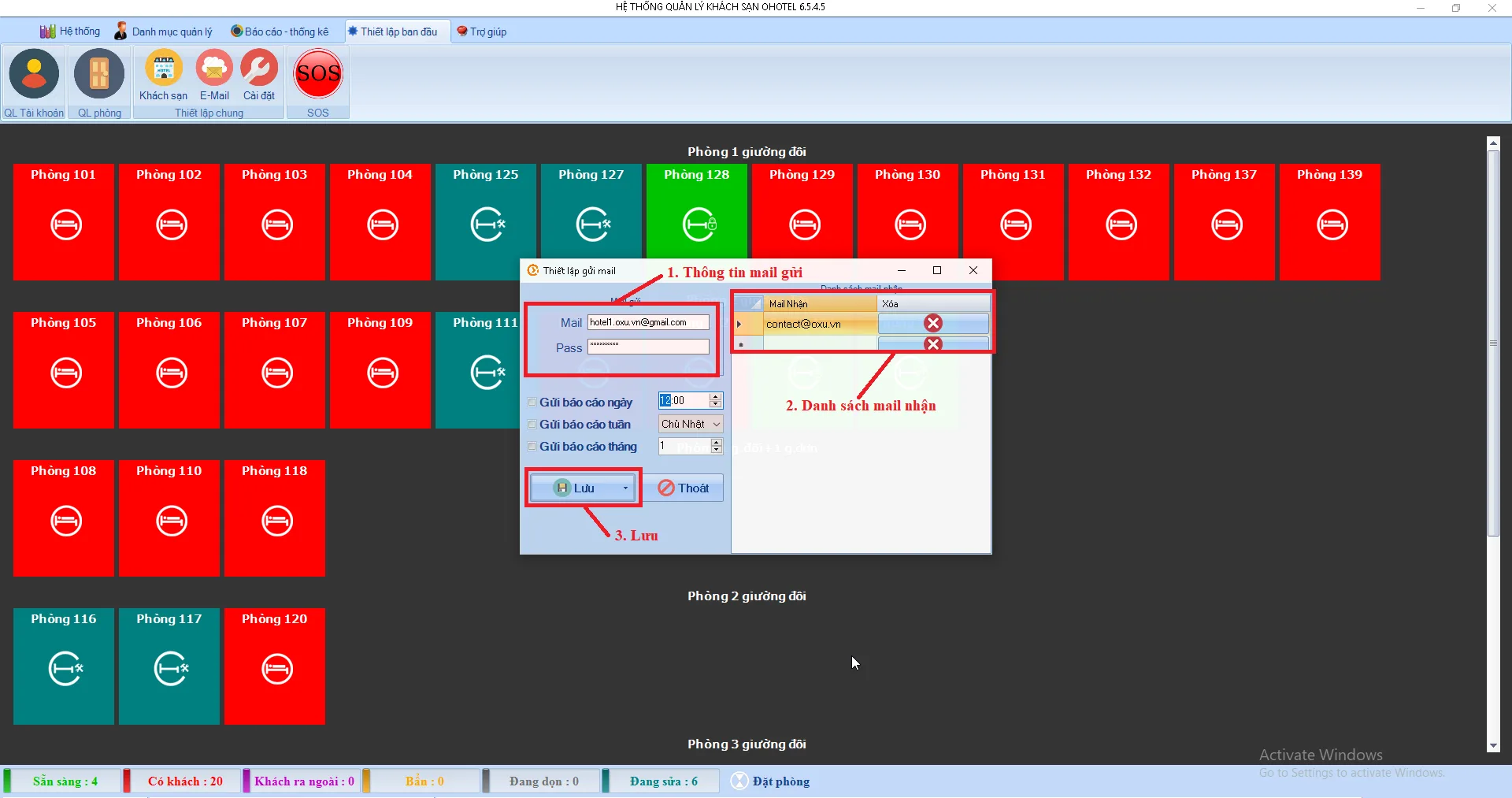
Go to Initial setup → select E-mail → the Email sending settings screen appears:
- Enter the sender email address and password in the fields highlighted in red
- (You can also update the recipients by adding addresses to the Recipient list)
- Click Save
2. Configure your Gmail account to allow sending
For the system to access your mailbox and send emails, follow these steps. First, open Cốc Cốc or Chrome and sign in with the sender email you just set up.
Step 1: Turn off 2-step verification
2-step verification sends a code to your phone every time you sign in. Because the software sends emails automatically, this needs to be turned off. You can do this in your Google account security settings; skip this step if it is already off.
Step 2: Allow access to your Gmail account
Go to this page and switch it to ON. This usually lets the software access your account and send reports automatically. If you still don't receive emails, do step 3.
Step 3: Connect your Gmail mailbox
Go to this page and click Continue to allow OHOTEL to send emails automatically.
Note: Google has since changed some of these security options. If the pages above are no longer available, create an App Password in your Google account and use it as the email password in OHOTEL, or contact our support team for help.
Once these steps are complete, automatic report emails are set up. If you need help, please call OHOTEL support on 0965.222.302 or 0965.222.302, or chat with our online advisors on our website – we're available 24/7.
Thank you for trusting the OHOTEL hotel management system, and we wish you every business success! Learn more about OHOTEL.